Learners must be taught how to use software to handle data, i.e.:
Creating business spreadsheets:
A CSV is a comma separated values file, which allows data to be saved in a table structured format. CSVs look like a garden-variety spreadsheet but with a .csv extension (Traditionally they take the form of a text file containing information separated by commas, hence the name). CSV files can be used with any spreadsheet program, such as Microsoft Excel, Open Office Calc, or Google Spreadsheets.
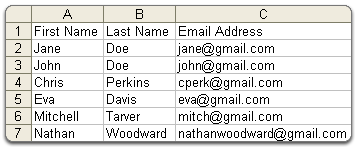
To create one, you can simply create a new spread sheet and make a sort of table with headers in the top row -
It this .csv you can either import information from other spreadsheets or input the data yourself. When making a table (for example contact details), you can name each of the rows/columns to label whats in each one. You can also use equations in these columns like addition and subtractions (these are written directly into the section you wish them to be in); here are some examples:
- SUM(value1, value2)
- AVERAGE(value1, value2)
- MIN(value1, value2)
- MAX(value1, value2)
- IF(logical_expression, value_if_true, value_if_false)
It is good to test the functions by changing the data in the cells you are using the function to make sure it is working properly.You can also add rows and columns to your spreadsheet by pressing the 'Insert' button on the top toolbar and scrolling down the drop down menu until you find 'Insert Row' or "Insert Column'. To insert tables and charts you do the same but press 'Insert Chart' instead. You can change the data in the cells too by double clicking them to highlight the text inside it and then clicking again to get the crosshair into the cell where you can type (you can also amend changes this way).
You can arrange the data in your cells to by:
Selecting one cell in the column you want to sort.
Press Ctrl(Cmd) + A, to select the entire region.
Check the selected area, to make sure that all the data is included and then press the 'Sort A-Z' button on the sidebar

No comments:
Post a Comment