Monday, 29 December 2014

R002 Assignment Task 5

A. The office manager has asked you to research items that can be given away to visitors to the stand
at the NEC exhibition.Use the internet to find at least three different items that would be suitable. You do not need to obtain a personalised quote - this will be done by the business when the choice has been made. Present your findings to the office manager, showing the search criteria you used.

The search criteria I used for (what I was looking for) were products that would be used/seen everyday - which have advertisement of Gnarly Hardware on them. They also needed to be bright and eye catching in different colours (if possible). I found four objects that I thought would be good and matched my criteria:

1. Lanyard(s) - colourful and can be used all the time with keys, USB sticks and key cards
 2. Key ring(s) - easy to advertise on and is seen all the time if on keys
 3. Sticky Note Pad(s) - could hold logo/watermark with Gnarly Hardware advertising
 4. USB stick - could have promotional media on the stick and also the logo on the USB itself
B. Record the copyright details of the images of the items you found so that the office manager
can request permission to use these images in the promotional material. 

All of the above images (apart from the sticky note pad) are free for the public to use as shown in the image below and are all from Wikimedia commons which states:

The sticky note pad is free for the public but some rights are reserved:

 Here are the URLs for the images of potential promotional use:
Lanyard - Lanyard.jpg
Keyring - Keyring.png
Sticky Note pad - Sticky Note pad.jpg
USB - SanDisk_Cruzer_Micro.png

C. The Gnarly Hardware stand at the exhibition will have a large computer screen. Create a resource to be used on the screen to promote the business at the exhibition.

The resource to be used:

Sunday, 28 December 2014

R002 Assignment Task 4

A. Some suppliers have informed you of the following changes:
• Bellas are no longer able to supply standard quality t-shirts in YS.
• Yings can now supply premium quality shirts, XXL polos at a unit cost of £2.75. They can
deliver in three days but orders must be for 50 or more items.
Update the relevant data file.

B. All stock in size XXL is running low. The factory manager wants a list, showing full details of
all the suppliers who can supply this size.
Produce a report showing this information. 


C. A customer has placed an urgent order for polos and t-shirts in size YS. The factory manager
wants to know if there are any suppliers who can deliver the goods tomorrow or the next day.

The factory manager will need to know the name of the supplier, the type of shirt or hat they
can supply, the quality, the cost per unit, the minimum order and the delivery time. It will be
useful to have the list sorted on cost, with the cheapest first.

Produce a report of suppliers who meet these requirements. 


R002 Assignment Task 3

The office manager would like you to send a personal letter to each sales manager and has
provided the wording of the letter for you to use.

For this task I used a tool in Pages '09 and Numbers called 'Mail Merge' which allows me to take data from a spreadsheet to a text document and merge certain fields (like the name at the top of the document or a date).

Link to the letters on Google Drive

R002 Assignment - Task 2

The office manager has asked you to design and create a new logo for use on all documentation.
The new name, Tailored Tops, must form part of the logo.
Create the new logo.


This is the finished logo:


R002 Assessment: Task 1


A. Read and respond to the email sent to you by the manager 


B. Create a filing structure to store the files used in this assessment

C. Set up your email system to enable you to efficiently:
  • Send emails regularly to each of the people listed below.
For this I used the Contacts tool to add the selected emails to the Gnarly Hardware group in my Gmail. This makes it easier to contact members of the group either with group emails or personal emails as the contacts are all there as a group.
Add them to my Gmail contacts so I could find and use their emails regularly (either one by one or all three at once) without having to type all the emails out manually.


  • Store incoming business messages, which will mainly come from the factory, other departments and customers 


  • For this I used the Contacts tool (to add the selected emails) and also the Label tool to allocate contacts to specific groups. This makes finding email conversations easier and keeps all the same type of email in the same place

    I created a folder/label in my Gmail where I moved all the conversations/messages from Admin, Factory, Finance and the Office Manager


    • Use a standard ending on all your emails
    For this I used the signature tool in the Gmail settings. This lets the receiver know my contact details and Gnarly Hardware's details to contact for queries or problems instead of them looking through a manual that comes with their product or a website  
    This is my 'Standard Ending'/signature on my emails.
    • Make sure that if anyone sends you an email when you are absent from work, they will receive an email to say that someone will deal with their query within 72 hours.
    For this I used the Out of Office tool in the Gmail settings:

    Here are the settings for my Out of Office Email which gets sent to everyone who emails me from the 28th of December onwards (until I stop it).

    Here is the finished email response when someone sends me an email. It states that the customers query will be dealt with within 72 hours as it is part of the Gnarly Hardware policy.

    D. Explain the email tools and etiquette that help you to communicate with others in a business
    context. 

    The tools that help me communicate with others in business are mainly the tools Gmail provides which include:
    • The Contacts tool (to save peoples details to use in the future or for reference)
    • The Group/Label tool (to send emails to lots of people at once quickly and store groups of people together)
    • The Signature tool (allows the user to easily add selected text/images to the end of emails they send to let other people know who they are and how to communicate with them etc...)
    • The Out of Office email tool (sends emails on your behalf to people who send you emails to say that you are out of your office for a certain period of time and how to contact you by other means or where to query instead) 
    It is important for all of the above that you are polite and courteous, making sure all the words are in the right context and spelt correctly showing professionalism.

    Thursday, 4 December 2014

    Learning Outcome 4: Be able to use software tools to format information

    Enhancing how documents look
    You can orient the page in a different way by changing the settings in the 'Page Setup' tab. This is under 'Documents' and then layout.

    Tuesday, 2 December 2014

    Learning Outcome 4: Be able to use software tools to format information


    Document Basics

    In a document, there are a few basics you need to learn to make it look and read well. Firstly you need to make 'Headers' which go at the top of the page in the boxes (as shown below)

    Also, 'Subheadings' show the title of the work you are doing - much like 'Document Basics' at the top of this post so they are very important to have (they are sometimes used for the date as well). The body text of the document is where you do all the writing and put the images.

    You also get 'Widows and Orphans' are words or short lines at the beginning or end of a paragraph, which are left dangling at the top or bottom of a column, separated from the rest of the paragraph.
    Example of a 'Orphan'
    You also get 'White Space' in text which is basically this:


    The use of cases in text is one of the most important things you can do, if it is full of the wrong case letters it will become harder to read as the reader becomes confused. Examples of what and what not to do:

    1) wElCOMe tO ThiS BLoG paGe? - Wrong
    2) Welcome to this blog page! - Correct

    Spacing before and after punctuation/characters is also very important - if you get it right it looks very professional and looks better than if its done wrong. 

    A page break is also a good thing to incorporate as it separates two pages without pressing 'Enter' to go down a paragraph. This can be done by pressing 'Insert' and the Page Break. If you don't want to use a page break you can just press shift and start a new paragraph on a new line.

    Learning Outcome 3: Be able to select and use software to communicate information for a business purpose

    Mail Merging documents
    To mail merge a document with either your computer contacts or a spreadsheet is a fairly straight forward task for a computer. You start with opening a new document - I chose a standard letter from the templates you can chose from but you can create your own document to mail merge if you wish.
    Once you get your document, you can make it how you wish with text and pictures etc before you choose where you want to put the name/address for the merge. Then you highlight it and go to the 'Edit' tab on the tool bar and click mail merge.
    When you do this a pop-up window should appear on the main screen asking you what you want the highlighted text to merge with.

    Here you can choose what you want to merge with either a Numbers document (spreadsheet) or with your contacts. For the example I chose my contacts which set the name at the top of each letter to the people in my contacts:


    Wednesday, 26 November 2014

    Learning Outcome 3: Be able to select and use software to communicate information for a business purpose

    Use tools and facilities appropriate to the software - Creating and Modifying documents
    To modify existing documents you need to locate the file you want to modify in your documents. For this you can locate it by pressing the spotlight icon in the top right of the screen (Apple Mac) or search in the Start Menu at the bottom left of the screen (Windows). Once you find your file you can either left click it to open it with the default program or right click it to choose from a list of applicable programs what to open it with (if there are any others). From here you can modify the file.

    To create a document, you need to open your desired program and, from the options it gives you, create a new document. This is different for almost every program but they are all (usually) visible. Here are some examples of what different programs look like:
       Microsoft Desktop Publishing


    Apple Desktop Publishing (Pages)


    Whilst choosing the type of new document you want, you can also choose ready made templates for leaflets, magazines, reports, cards and even invoices. All you have to do is to choose the option at the side of the box you see when choosing your type of 'new' document.


    Learning Outcome 3: Be able to select and use software to communicate information for a business purpose

    Use tools and facilities appropriate to the software
    Entering text/images into a document is fairly straight forward. For many documents, you can just start to type on the keyboard to input text (if they are common Desktop Publishing programs like Pages or Microsoft Word). If this doesn't work for some reason or the package you use doesn't support this, you can press the button on the top toolbar that says 'Text'.
    To import images you can either:
    1. Copy and paste
    2. Import via Media or Insert
    3. Drag and drop

    I find it most easy to jut drag and drop the image into a document (by holding down left click and dragging the image to where you want it to be) but the other ways are just as good. To copy and paste an image, you right click on the image and select the 'Copy' option in the drop down menu.
    Then in the document, you do the same but click 'Paste' instead of 'Copy'. The other way is to right click on the image and press 'Save Image As...' which brings you to a save directory where you can name the image and save it somewhere you can find it easily - like your desktop for example. Then after this you can insert the image by either dragging in the file or importing it via the 'Media' tab or 'Import' tab. To resize these images, all you have to do is to click it and use the little squares that appear in the corners and the centre of each side to push and pull, changing the size. It is important to select the right type of graphic and font to math the template or document style you are using (for a invitation, you would use a classic font unlike a informal leaflet that is designed to catch your eye with funk text and graphics that match)


    Tuesday, 25 November 2014

    Learning Outcome 3: Be able to select and use software to communicate information for a business purpose

    Import txt and rtf files and save in an appropriate file type to retain formatting
    When importing .txt files and .rtf files, they are sometimes converted when opened with certain programs on certain operating systems. For example, when opened on an older Apple machine, they can be changed to a .note and this means they may not be able to be opened on other operating systems. An easy way to avoid this is to select the '.txt' option in the drop down menu whilst saving it for the first time or saving as something else. This will keep the same extention.

    Learning Outcome 2: Be able to select and use software to handle data

    Printing databases:
    Printing selected data in a database is a fairly easy thing to do. All you basically need to do is go to the tab at the top saying 'Page Layout' (in Microsoft Excel) or under 'Print Range' in the Format drop down menu in NeoOffice where you select the highlighted area in the database and press 'Add'. Then whilst in this menu you go to the tab that says Sheet or Print to choose what you want to print out and what not to.
    Here you can also choose to print put certain versions of whats in the cells - formula, plain data, groups of data and/or headers etc...

    Tuesday, 18 November 2014

    Learning Outcome 2: Be able to select and use software to handle data

    Creating Databases

    'Flat File' Databases
    When you first set up your database, you can choose to make a 'flat-file' database in the options it gives you. This must however be saved in the correct file type (csv.) when you choose your save options.

    To enter new data to files, all you have to do is double click on the box you want to use before entering your data. This is the same or editing data but instead of clicking twice you click three times to put the cursor in the part of the characters you want to edit. To delete, you highlight the box(es) and press the backspace key.

    To sort the table, you can press the button that looks like:[A-Z] to sort alphabetically and [Z-A] to inverse. To query a single table you can 'Auto Filter', 'Standard Filter' and 'Advanced Filter'. With the Auto Filter, you highlight the data you want to filter and press the option (under the data drop-down menu). This then gives you small drop down menus on the headers of each column so you can filter them accordingly as shown below.


    The standard filter is a little more complicated than this; when you click the option you get a popup that looks like this:
                                   
    Here is where you can choose the criteria of search in what column (like the auto filter but with more control). Then you enter how you want to search based on the column headings and how they need to be sorted. For example, I chose Initials beginning with K, this is what I got as a result from the database:


    For the advanced search, it is even more complex due to having to make the search criteria yourself instead of choosing from various valid search options like the others. Here is what it looks like:


    Learning Outcome 2: Be able to select and use software to handle data

    Printing data from spreadsheets:
    There are three different formats you can print a spreadsheet in; they are:
    Spreadsheet view
    Formulae view
    Selected data

    The spreadsheet is already in 'spreadsheet view' but for formulae view you:

    Hold down the ctrl (cmd) key and press the key ¬¦·. This makes your worksheet show its formulas, not the results. To print your sheet, hold down control(command) key and press the ¬¦· key again.

    To print selected data you: 

    Open the spreadsheet with the data you need and hold down the Ctrl (cmd) key while highlighting the area of the document you want to print out. Click the Page Layout tab on the top bar, then the Print Area button and Set Print Area to print.

    Learning Outcome 2: Be able to select and use software to handle data

    Learners must be taught how to use software to handle data, i.e.:

    Creating business spreadsheets:
    A CSV is a comma separated values file, which allows data to be saved in a table structured format. CSVs look like a garden-variety spreadsheet but with a .csv extension (Traditionally they take the form of a text file containing information separated by commas, hence the name). CSV files can be used with any spreadsheet program, such as Microsoft Excel, Open Office Calc, or Google Spreadsheets.

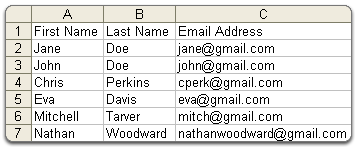
    To create one, you can simply create a new spread sheet and make a sort of table with headers in the top row -
    It this .csv you can either import information from other spreadsheets or input the data yourself. When making a table (for example contact details), you can name each of the rows/columns to label whats in each one. You can also use equations in these columns like addition and subtractions (these are written directly into the section you wish them to be in); here are some examples:
    - SUM(value1, value2)
    - AVERAGE(value1, value2)
    - MIN(value1, value2)
    - MAX(value1, value2)
    - IF(logical_expression, value_if_true, value_if_false)

    It is good to test the functions by changing the data in the cells you are using the function to make sure it is working properly.You can also add rows and columns to your spreadsheet by pressing the 'Insert' button on the top toolbar and scrolling down the drop down menu until you find 'Insert Row' or "Insert Column'. To insert tables and charts you do the same but press 'Insert Chart' instead. You can change the data in the cells too by double clicking them to highlight the text inside it and then clicking again to get the crosshair into the cell where you can type (you can also amend changes this way). 

    You can arrange the data in your cells to by:
    Selecting one cell in the column you want to sort.
    Press Ctrl(Cmd) + A, to select the entire region.
    Check the selected area, to make sure that all the data is included and then press the 'Sort A-Z' button on the sidebar


    Tuesday, 11 November 2014

    Learning Outcome 1: Be able to use techniques to search for, store and share information

    Use email to communicate with others in business contextsThings that you need to do/think about whilst writing an email:
    Subject Line: The subject line is an important part of the email as it gives you, the writer, the opportunity to tell the recipient what the email entails.
    The Body of the Message: This is where the main message to the recipient goes
    CC: A 'carbon copy' is a copy of the note sent to the addressee other than the main addressee.BCC: A 'blind carbon copy' which is similar to that of carbon copy except that the Email address of the recipients specified in this field do not appear in the received message header and the recipients in the To or Cc fields will not know that a copy sent to these address.


    The email signature is at the end of the email and it states the signature of the sender. You can also sent files as an attachment on an email by clicking the paper clip on the bottom bar of the email window.

    You can also set up a 'out of office' email (auto response email) that sends people who send you emails an automatic email back saying that you are unable to read the email. This can be configured in he settings part of you email.

    Emails can be put into folders when they have been read so they can be found for future reference. One very common save folder (for Gmail users) is the 'Archive' folder which is the large folder for saved emails that aren't in specially made folders.

    Learning Outcome 1: Be able to use techniques to search for, store and share information

    Storing Electronic Information
    If folders are named appropriately then things are easier to find in the future. It is especially useful for school work as work can be organised into subjects as shown below.


    It is also worth backing up your work on an external hard drive or USB - especially if the folders mean a lot to you (like school work or photos). This can be easily done and it is good to do once in a while, maybe 2-3 weeks.

    Password Protection with files and folders is not so common but is imperative if the computer contains private personal details (like bank account details or insurance information. If you choose the files to be protected, they become encrypted and extremely hard to unravel - even by todays technology.

    Files can also become very large and full of pictures and work. There is an easy solution to this which is called 'compressing' or 'zipping' which compresses the files into a smaller format meaning they are inaccessible until this process is reversed which as you could guess is called 'unzipping'.

    Wednesday, 5 November 2014

    Learning Outcome 1: Be able to use techniques to search for, store and share information

    Reference all information copied/sourced
    Referencing copied/sourced data is easy to find. It is also known as 'Metadata' and is found on original picture copies. It states the source (what it was taken with), the date it was created, and also the time it was taken. Here is an example from Wikimedia Commons.


    URL: http://commons.wikimedia.org/wiki/File:Flumserberg_(Schweiz)_--_2011_--_7.jpg

    Learning Outcome 1: Be able to use techniques to search for, store and share information

    Evaluating validity of information
    It is important to check the reliability of a source as not everything on some of the worlds most used sites, like Wikipedia which is mainly public information. To check the reliability of a source it is always good to first look at the start of the URL. If it has https: at the front of the URL it is almost certainly a reliable site unless its known otherwise. Also, site setup by major organisations (e.g. BBC Bitesize) are reliable sources as they are created to a standard.

    It is also good to check the age of the piece of information you are trying to view as it the piece is significantly old, it may affect the validity of the information you have found.

    Biased information on sites is also an issue when finding legitimate information - especially if the site is supporting something like animal trafficking for example.


    Tuesday, 4 November 2014

    Learning Outcome 1: Be able to use techniques to search for, store and share information

    Use non-internet based sources to find information

    There are a few ways that you can find information without using the internet:

    - A Local Area Network (LAN) which is a localised system that links computers which are in close  proximity to each other, i.e. an office or a school.

    - Wireless Area Network (WLAN) is also known as Wi-Fi which is again used in homes and schools  for someone to connect to a wireless access point to connect devices (like a laptop or mobile device) to the Local Area Network (LAN)

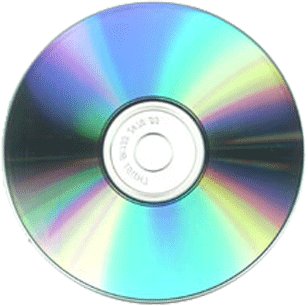
    - A CD-ROM is a compact read-only disk that is used as a memory device system readable by a  computer. These are handy to use but are fragile and easily broken if not treated with care.